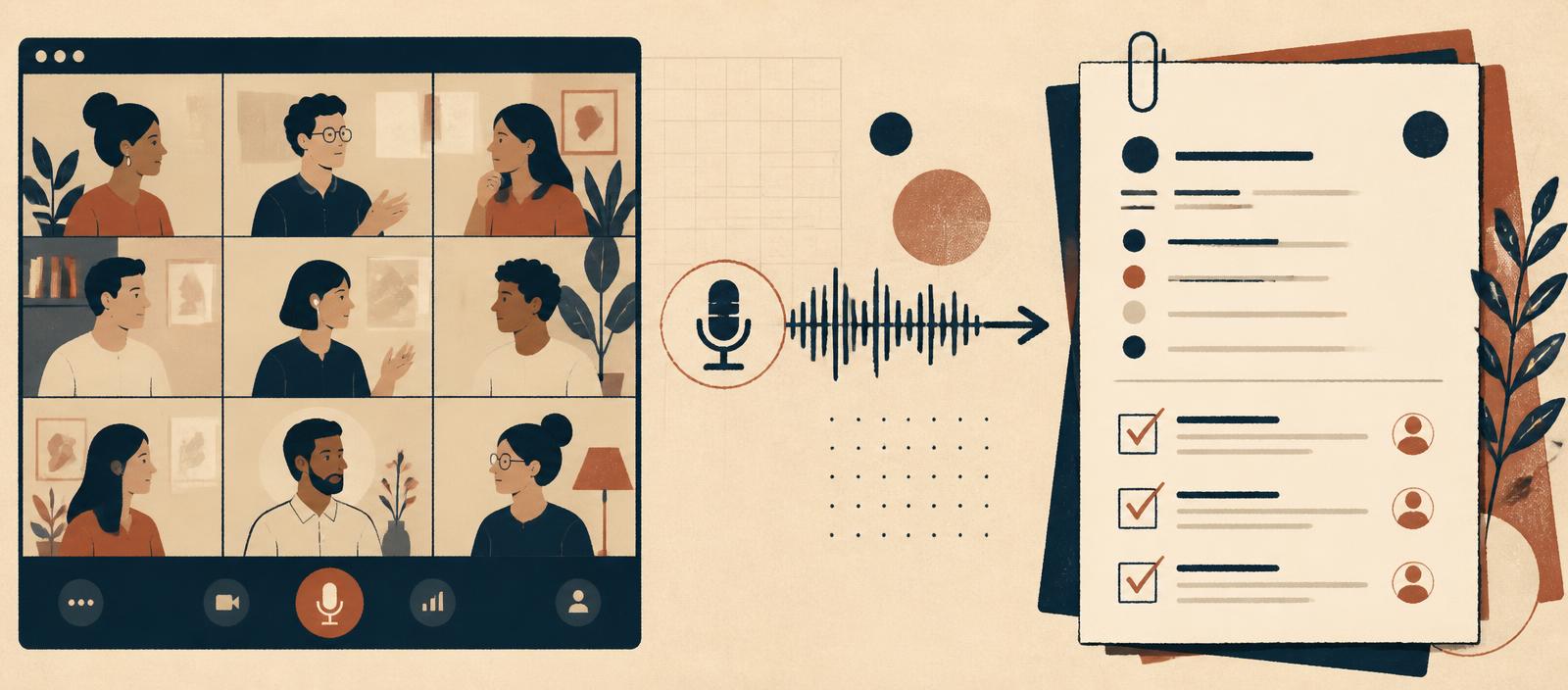
AI for Minutes of Meeting
Minutes are the one administrative task where a general chatbot is the wrong tool. A dedicated notetaker hears the meeting, so you can stop typing and start following the discussion.
Why minutes deserve their own tool
A general assistant can only work with what you paste into it. A meeting tool joins the call, captures every speaker, and gives you a transcript, a summary and a list of action items before you have left the room.
- You stop being a stenographer and become a participant who can ask clarifying questions.
- Speaker attribution means 'who agreed to what' is recorded, not remembered.
- The transcript is searchable, three months later you can find the exact sentence.
- Action items are extracted automatically, which is where most minutes quietly fail.
- Draft minutes exist within minutes of the meeting ending, while corrections are still easy.
No live notetaker? Use NotebookLM on a recording
Sometimes you cannot invite a bot to the meeting. You may have a voice memo, an existing audio file, or a recording made on your phone. NotebookLM can upload the audio and turn it into a searchable transcript, summary and even a briefing note.
- Upload the audio file. NotebookLM accepts common formats and produces a transcript you can read alongside the playback.
- Ask for a meeting summary. Use its chat to request "summarise this meeting in 5 bullet points with action items".
- Get a structured format. Request output as minutes of meeting, email draft or follow-up checklist.
- Check the transcript against the audio. NotebookLM is accurate, but names, acronyms and local terms still need your ear.
I have uploaded an audio recording of a meeting. Please:
1. Provide a full transcript with approximate timestamps.
2. Summarise the meeting in 3-5 bullet points.
3. List all action items in a table: Action | Owner | Deadline.
4. Flag any unclear audio or names with [UNCLEAR] so I can review.
5. Suggest a subject line for the minutes circulation email.
Gemini in Google Meet
If your organisation uses Google Workspace, Gemini can already sit in your Meet calls. It takes live notes, lists action items and answers your questions about what was said, all without an extra bot joining the room.
- Auto-notes during the call. Gemini captures key discussion points while the meeting is running, so you can listen instead of type.
- Ask about the meeting afterwards. "What did the finance person agree to?" or "List the unresolved items" works once the call is saved.
- Action items built in. Gemini extracts tasks and owners in a ready to copy format.
- It works on recordings too. If you missed a meeting, open the saved Meet recording and ask Gemini to summarise it.
- Check the workspace setting. Gemini features must be turned on by your admin; ask IT once rather than discovering it mid-meeting.
I have a recorded Google Meet. Please act as the meeting assistant and:
1. Summarise the discussion in 3-5 bullet points.
2. List every action item with owner and deadline.
3. Highlight any decisions that still need approval or follow-up.
4. Note any figures, dates or budget amounts mentioned.
5. Flag anything that sounds unclear or was left unresolved.
Paste this into the Gemini side panel while the Meet recording is open, or right after the live call ends.
Getting the most from Gemini in Meet
- Use clear action language in the meeting; 'I will send the draft by Friday' is easier to extract than 'someone should look at that soon'.
- Ask Gemini specific questions rather than asking for a generic summary.
- For bilingual meetings, check the Bahasa Malaysia segments yourself, as Gemini may paraphrase mixed-language discussion.
- Still run the final output through your office minutes format before circulation.
From transcript to proper minutes
The AI summary is raw material, not minutes. Minutes have a house style, a numbering convention, and a level of discretion no tool can infer.
Convert this meeting transcript into formal minutes of meeting.
Structure:
1. Meeting title, date, time, venue, chairperson
2. Attendance / apologies (from the names in the transcript)
3. Numbered agenda items, each with: brief discussion summary (max 4 lines), decision, and action party with deadline
4. Action item table: No. | Action | Responsible | Deadline
5. Date of next meeting if mentioned
Tone: neutral, third person, past tense. Report decisions, not personalities.
Do not include casual remarks, side conversations or anything not related to a decision.
Mark anything unclear as [TO CONFIRM] rather than guessing.
Transcript: [paste]
From this transcript, list only the commitments made.
Format a table: Action | Who committed | Stated deadline | Direct quote that proves it.
If a deadline was not stated, write "no deadline stated", do not invent one.
Transcript: [paste]
Rewrite these draft minutes in neutral official register.
Rules: remove emotive language and blame, remove names from criticism (write "a member noted"), keep every decision and figure exactly as written, keep it concise.
Draft: [paste]
Draft a short email circulating the attached draft minutes.
Include: meeting name and date, request for corrections within 5 working days, a reminder line listing each action party and their deadline, and my contact details.
Tone: polite, brief, formal. Under 130 words.
Editing checklist before circulation
Tick these off on the draft. This is where accuracy is actually won.
0 of 10 ticked
Distributing and following up
- Circulate the draft within two working days, while memories are fresh enough to correct it.
- Give a fixed correction window, then treat the minutes as confirmed.
- Copy the action table into a simple tracker (a spreadsheet is enough) with a status column.
- Send a short reminder a week before each deadline, this is the habit that makes minutes matter.
- Open the next meeting with the previous action table so follow-up is visible, not optional.
- Store the confirmed minutes in one predictable folder structure; delete the raw recording per your retention rule.
Hands-on activity
- 1Open NotebookLM and upload a short audio recording, or start a Google Meet practice call with Gemini enabled.
- 2Run a short practice meeting with two colleagues, announce the recording first.
- 3Discuss three fake agenda items and deliberately assign two action items with deadlines.
- 4End the meeting and read the automatic summary and action list.
- 5Run the 'Turn a transcript into formal minutes' prompt and compare it to the automatic summary.
- 6Work through the editing checklist above and produce one clean, circulation-ready draft.
You should end up with: A full set of draft minutes and an action table produced from a real recording.
Do
- Announce and minute the fact that an AI notetaker was used.
- Read the transcript for every decision, not just the summary.
- Keep your office's existing minutes format, paste a past example as the style guide.
- Track action items after circulation, not just before.
Don't
- Record sensitive HR, disciplinary or medical discussions without written authorisation.
- Circulate an AI summary as the minutes.
- Let the transcript's misheard names reach the final document.
- Keep recordings indefinitely once the minutes are confirmed.
Tips & pitfalls
- Say key decisions out loud and clearly in the meeting, 'so the decision is...', and both the humans and the AI capture them correctly.
- Ask the chair to summarise each item before moving on; the transcript then almost writes itself.
- For bilingual meetings, expect mixed-language transcripts and check the Bahasa Malaysia segments manually.
- Keep a personal 'minutes style' prompt with your office's exact format, and reuse it every time.