
Working with Documents and Knowledge Bases
A general assistant guesses. NotebookLM reads only what you give it. That single difference makes it the right tool for SOPs, policies, meeting papers and every long report nobody has time to finish.
Why a source-grounded tool changes everything
When you upload documents into NotebookLM, it answers using those documents and shows you the exact passage behind every sentence. If the answer is not in your files, it says so instead of inventing something.
- Answers are grounded: each claim carries a clickable citation back to the source page.
- It handles length well, annual reports, minutes archives, tender documents, staff handbooks.
- One notebook can hold many related files, so you can ask questions across a whole topic.
- It is built for reading and understanding, not for drafting outgoing letters, use Module 1's tools for that.
Setting up your first notebook
- Create a notebook per topic, not per file. "Staff Claims & Travel" is a good notebook; "Document 3" is not.
- Add sources. PDFs, Word files, Google Docs, Slides, pasted text, website links and even YouTube links can all become sources.
- Let it read. A short summary and suggested questions appear once processing is done.
- Ask in plain language. "What is the claim deadline after travel ends?" works better than keyword searching.
- Save the useful answers as notes inside the notebook so your briefing material builds up over time.
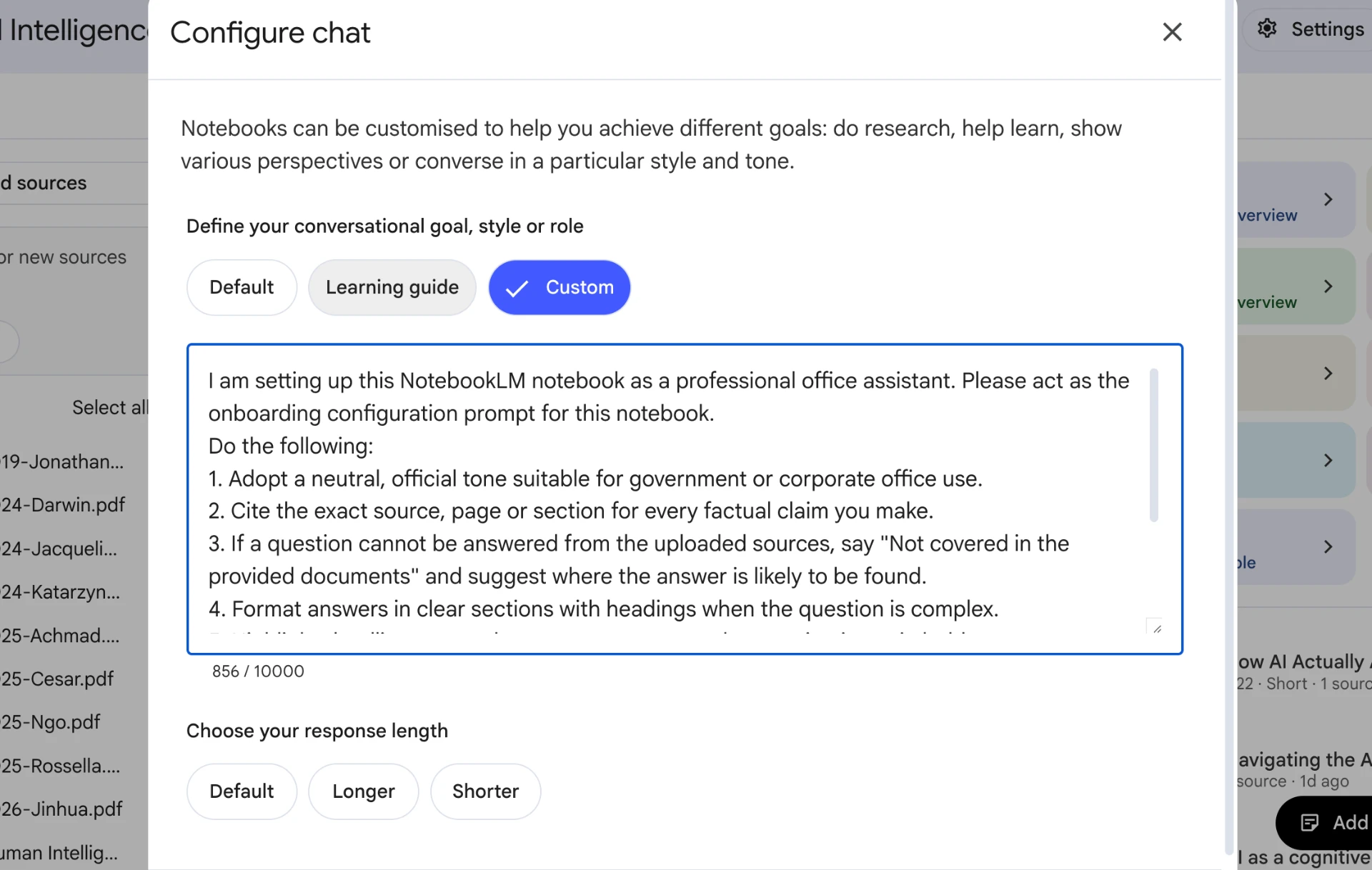
I am setting up this NotebookLM notebook as a professional office assistant. Please act as the onboarding configuration prompt for this notebook.

Do the following:
1. Adopt a neutral, official tone suitable for government or corporate office use.
2. Cite the exact source, page or section for every factual claim you make.
3. If a question cannot be answered from the uploaded sources, say "Not covered in the provided documents" and suggest where the answer is likely to be found.
4. Format answers in clear sections with headings when the question is complex.
5. Highlight deadlines, named persons, amounts, and any action items in bold.
6. When comparing sources, use a table with clear columns.
7. Keep responses concise unless asked for a full briefing or summary.

Please confirm this configuration and summarise the current sources in this notebook.
What to ask a pile of documents
Summarise the uploaded report for a busy head of department who has five minutes.
Structure:
1. What this document is and who issued it
2. Five key points, each one sentence
3. Anything that requires action by our office, with deadlines
4. Anything unclear or missing that we should ask about
Cite the section or page for every point.
Using only the uploaded SOP, write 10 frequently asked questions with short answers for our counter staff.
Use everyday language, not the wording of the document.
For each answer, cite the clause or page it comes from.
Flag any question the SOP does not actually answer.
Prepare a one-page briefing note based on the uploaded sources.
Format: Background (3 lines), Current position, Options with pros and cons, Recommended next step, Points to watch.
Neutral official tone. Maximum 350 words. Cite sources for every factual statement.
Compare the two uploaded documents and list what changed.
Format a table with: Item, Old provision, New provision, What it means for our office.
Then list three changes that most affect day-to-day administrative work.
Search the uploaded sources and answer this question exactly as documented: [your question]
If the sources do not answer it, reply "Not covered in these documents" and tell me which document would most likely contain it.
Do not use outside knowledge.
Saving useful answers as notes and sources
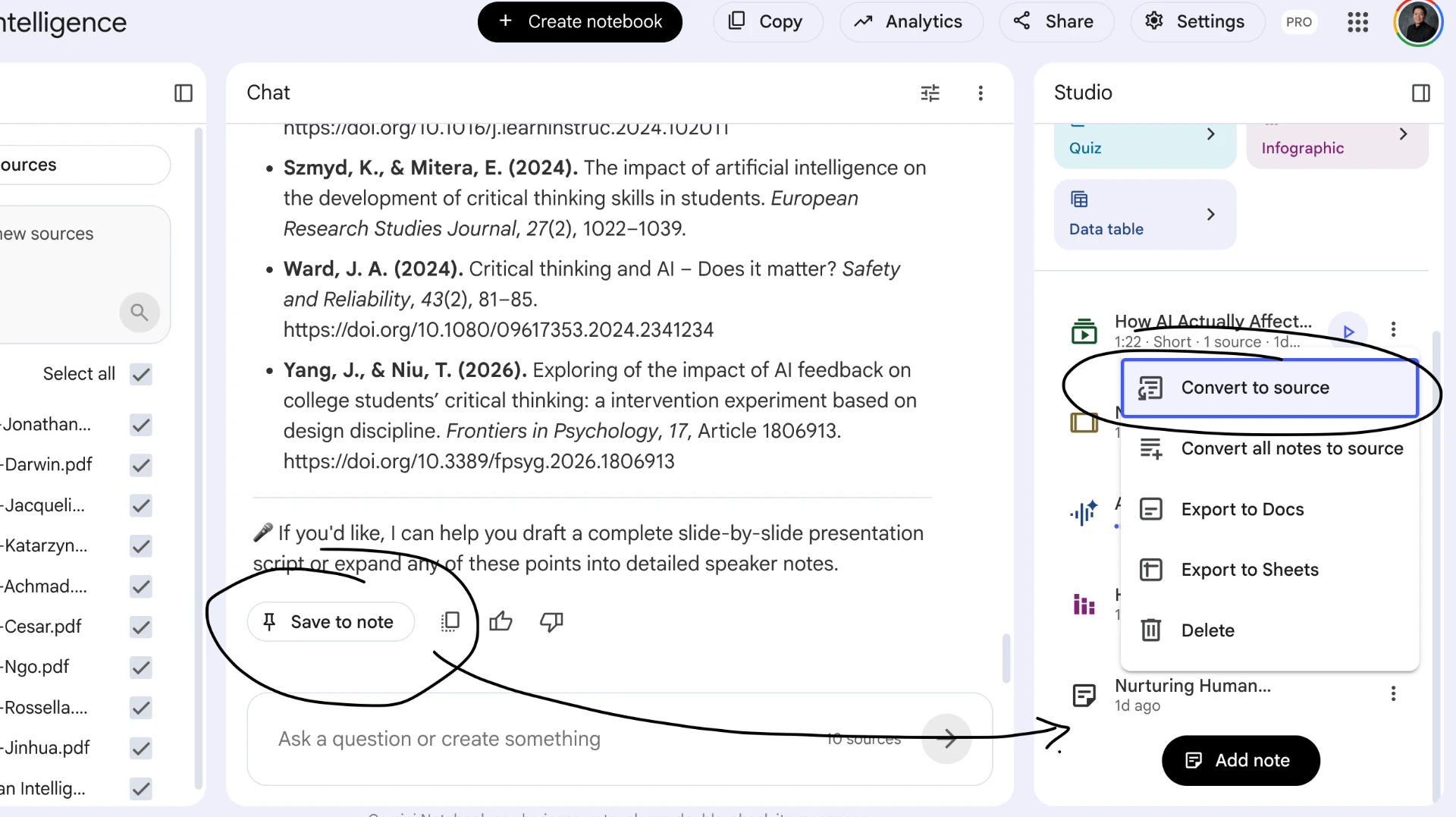
A good answer is wasted if you cannot find it again. NotebookLM lets you save any response as a note, then convert that note into a source so future questions can draw from your own verified summaries.
- Click Save to note on any answer you want to keep.
- Open the note, click the three-dot menu, and choose Convert to source.
- Once converted, the note appears in your source list and can be cited by the AI in later answers.
- Use this to build your own office FAQ, verified briefing notes, or cleaned-up summaries that outlast any single chat.
Building a knowledge base that keeps paying off
The value is not one summary, it is having your office's reference material permanently searchable in plain language. Build it once, use it every week.
- Start with the four documents you are asked about most: claims, leave, procurement, and your own unit's SOP.
- Add the current year's circulars as they arrive, so the notebook is never out of date.
- Keep separate notebooks for separate audiences, one for counter enquiries, one for management papers.
- Note the version and date of every source in its title, e.g. 'Travel Claim SOP (v3, Jan 2026)'.
- Remove superseded documents immediately; an outdated source produces a confidently outdated answer.
Customising Slide Deck and Infographic Output
The same sources can be turned into a slide deck, infographic or visual summary. You do not have to accept the default wall of text. Tell the AI what you need the output for, and it will reshape the content into a format that fits your audience.
- Specify the output format: PowerPoint slides, Canva-style poster, infographic, one-page brief or email body.
- Describe the audience: senior management, counter staff, students, or the general public.
- Set the tone and length: formal, friendly, urgent, maximum number of bullet points or slides.
- Ask for suggested visuals or icons instead of decorative text; AI-generated words often contain errors.
Using the uploaded report, create a 6-slide presentation deck for a senior management briefing.
Requirements:
1. One clear headline per slide, no paragraphs longer than two lines.
2. Use a maximum of 5 short bullet points per slide.
3. Include a slide for key decisions required from the audience.
4. Suggest one simple icon or visual for each slide, but do not generate text inside images.
5. Output as a slide-by-slide outline I can copy into PowerPoint or Canva.
From the uploaded document, create the content for an A4 portrait infographic about [topic].
Format:
1. A short headline (max 8 words).
2. Three to five key points, each with a 1-sentence explanation and a suggested icon.
3. One call-to-action box at the bottom.
4. No text inside the suggested images; all wording must be editable by me.
5. Keep the total text short enough to fit an A4 poster with generous spacing.
Verifying what comes back
Grounded does not mean automatically correct
- Click the citation. Every time. A summary can be right about the words and wrong about the meaning.
- Check that the source itself is current, the AI will faithfully summarise an obsolete circular.
- Numbers, dates, rates and deadlines must be read from the original document before they go into any outgoing letter.
- If the AI's answer conflicts with what your officer says, escalate to the human, not to another AI.
- Never quote an AI summary as the authority in official correspondence. Quote the circular.
Hands-on activity
- 1Create a notebook named after a real topic your office handles regularly.
- 2Upload two or three non-confidential documents on that topic, an SOP, a circular, a report.
- 3Run the 'Turn an SOP into a staff FAQ' prompt and read the result critically.
- 4Click through three citations and confirm each one really says what the answer claims.
- 5Correct one answer yourself, save it as a note, and you now have the first entry of your office FAQ.
You should end up with: A working notebook plus a verified FAQ draft your colleagues can actually use.
Do
- Upload the real document instead of describing it from memory.
- Ask for the source of every factual claim, then check it.
- Keep notebooks organised by topic and label source versions.
- Use it to prepare questions for a meeting you have not had time to read for.
Don't
- Upload documents marked confidential, restricted or containing personal data without approval.
- Treat a generated summary as an official interpretation of policy.
- Leave superseded circulars sitting in the notebook.
- Forward a summary onward without reading the underlying clause yourself.
Tips & pitfalls
- Ask 'what does this document NOT tell me?', the gaps are usually what your boss will ask about.
- The audio overview feature turns a notebook into a short spoken briefing for your commute.
- For scanned PDFs, check that the text is selectable; an image-only scan gives the tool nothing to read.
- Long meeting papers: ask for 'decisions required from us, with the page number for each'.
- Keep a personal notebook of your own past letters as a style reference for future drafting.